Navigating the home page
Overview
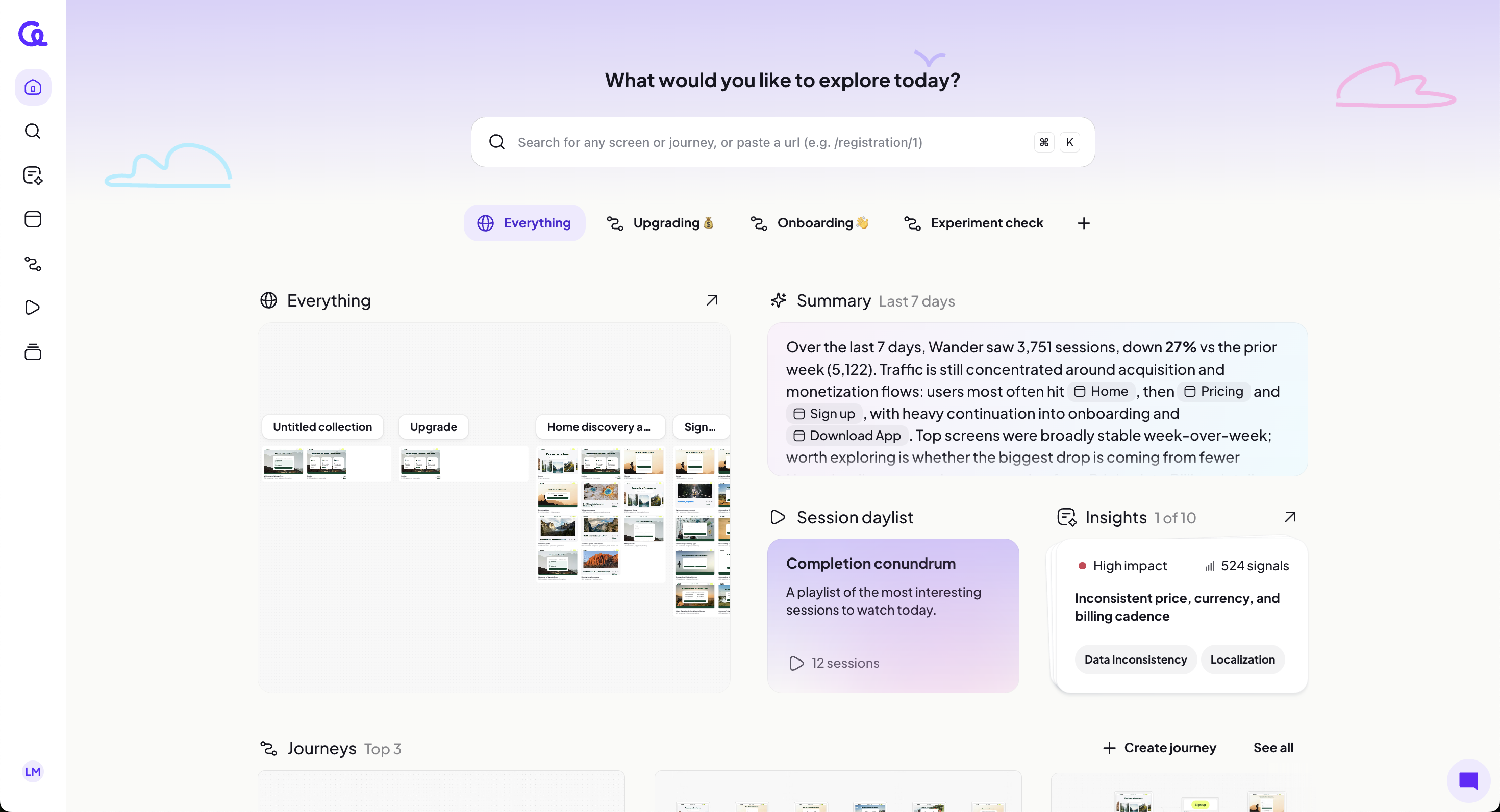
The Home page is your starting point after you sign in. It shows a global overview, curated sessions, pinned journeys, and your top screens so you can decide what to explore first.
Left navigation
Shows primary areas of Adora.
Home (current page)
Search
Insights
Screens
Journeys
Sessions
Collections
You can:
Click any item to navigate to that area.
Tabs and search
At the top of Home, a search bar sits above a row of tabs.
Search bar appears at the top.
Tabs: you start on Everything. Additional tabs match your pinned team journeys.
“+” tab: click to create a new journey.
You can:
Search from the top bar.
Click a journey tab to view that journey’s Home view.
Click + to create a new journey.
Everything tab
Shows an org-wide snapshot for the last 7 days, a curated session daylist, a quick insight, your top pinned team journeys, and your top screens.
Summary (last 7 days)
Displays a text summary of recent activity across your product. Example:
Org-wide activity cooled off: -65% sessions week-over-week (5,117 vs 14,601). Traffic is concentrated on acquisition and monetization: (5,109 sessions) and (3,581), plus park guides like (3,469). Worth exploring: where users drop between (2,799) and (2,800), and how many sessions enter the onboarding flow (2,294).
You can:
Read the week-over-week context and suggested areas to investigate.
Session daylist
Shows a daily, handpicked set of sessions to watch around a theme, with a session count per day.
You can:
Click the session count for any day to open the playlist view for that day’s theme.
Insights
Shows a highlighted insight.
You can:
Click the insight to open the dedicated Insights page.
Top journeys
Shows your top pinned team journeys with a count indicator (for example, “Top journeys — 3”).
You can:
Click a journey to open its tab on Home.
Top screens
Shows your top screens with a count indicator (for example, “Top screens — 10”).
You can:
Click a screen to open the Screens area for that screen.
Journey tabs
When you click a journey tab, Home focuses on that journey.
Journey title appears as the tab name.
Summary (last 7 days) shows metrics and narrative specific to the journey.
Session daylist shows curated sessions for this journey.
Insights shows insights specific to this journey.
Screens lists screens associated with this journey.
You can:
Review the journey-specific summary to spot changes over the last 7 days.
Open the journey’s session daylist and click a day’s session count to view the playlist.
Click an insight to open it on the Insights page.
Click a screen to inspect it in Screens.
Profile and help (bottom left)
Your avatar appears in the bottom-left corner of Home.
You can:
Open Settings.
Open the Help page.
Log out.