Searching in Adora
Overview
Search lets you find screens, actions, journeys, session evidence, and text on screen across Adora. This article explains how to open Search, use the Search modal, and work with the Results page.
Open Search
Search is available anywhere in Adora.
Click the magnifying glass in the left sidebar.
Or press
Cmd + K.
Search modal
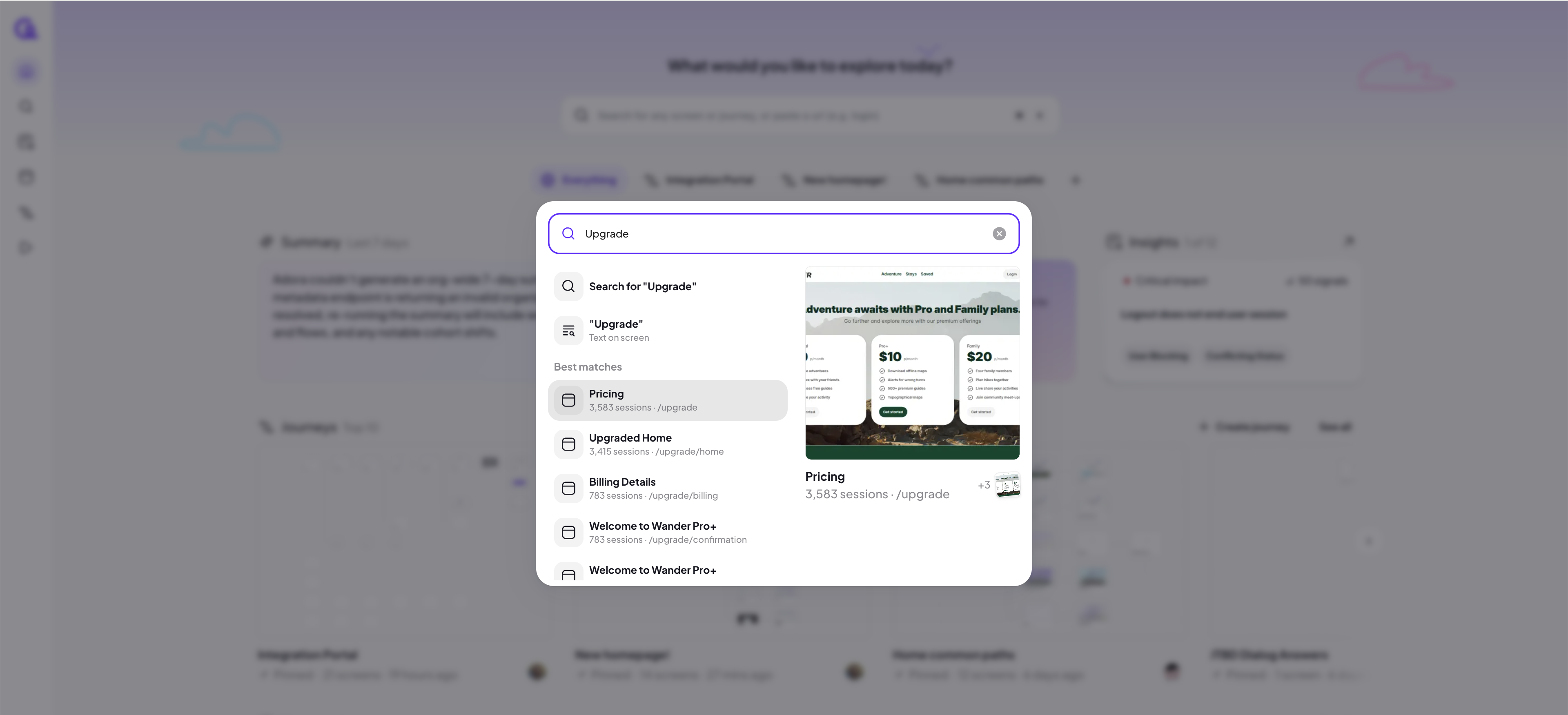
The Search modal appears centered with a single input field.
With no term entered, it shows your pinned journeys plus recent journeys, screens, and actions.
After you type a term, the modal shows:
Search for “{term}” — opens the Results page for all components.
“{term}” Text on screen — finds screens where the text appears.
Best matches — a ranked list across components with a larger preview on the right.
You can:
Type a term and press Enter to open Search for “{term}”.
Click “{term}” Text on screen to constrain to text-on-screen matches.
Click a Best matches item to open its page.
Hover over a result to preview what is returned.
Results page
The Results page shows a grid of results across components with a search bar at the top.
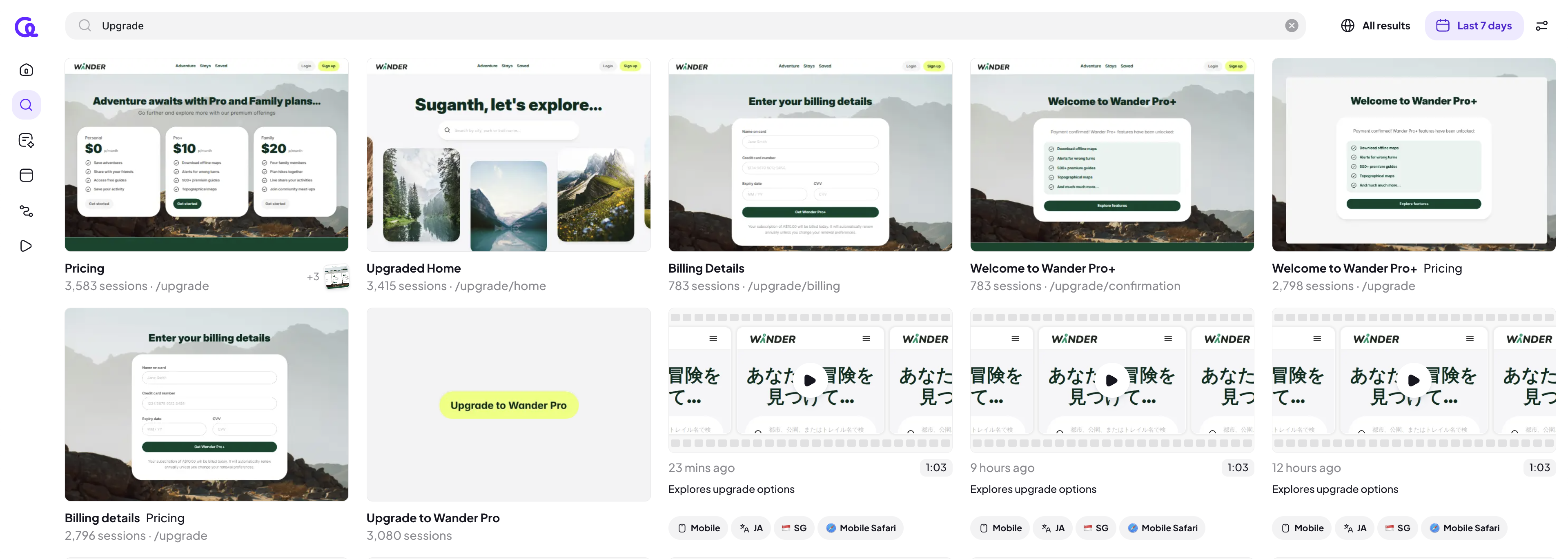
Top-right controls:
All results dropdown to scope results by component: All results, Screens, Actions, Journeys, Sessions.
Last 7 days control to set a time range.
Properties filter icon for additional filters.
Result cards:
Show a thumbnail and the item name.
Show path/URL where available (for screens).
Show a session count when the match is based on session evidence.
For text-on-screen matches, you will need to first filter All results for just screens to see the option appear.
You can:
Click a result to open its dedicated view in the same tab.
Change All results to focus on a component type.
Adjust the time range.
Filter with properties using the properties filter icon.
Result types
Screens
Shows the screen thumbnail, name, and path. Clicking opens the screen view.
Actions
Shows the action thumbnail and name. Clicking opens the action view.
Journeys
Shows the journey thumbnail and name. Clicking opens the journey map.
Sessions
Shows a session thumbnail and summary details. Clicking opens the session replay.
Text on screen
Shows screens that contain the searched text. Clicking opens the screen view.