What are sessions
Overview
Sessions let you watch real user activity inside your product. Each session is a recording of how a user moved through your app, including every step and key moment. You can use sessions to understand user behavior, confirm whether features work as expected, and spot friction points.
This article explains what sessions are, where to find them, and what information you can view inside each session.
What sessions are
A session is a recording of a user’s activity in your product. Sessions show:
A visual playback of each action the user took
A step-by-step timeline of the screens they visited
Key moments that help you understand user behavior faster
Context that supports debugging and product improvement
How to access sessions
From the sessions page
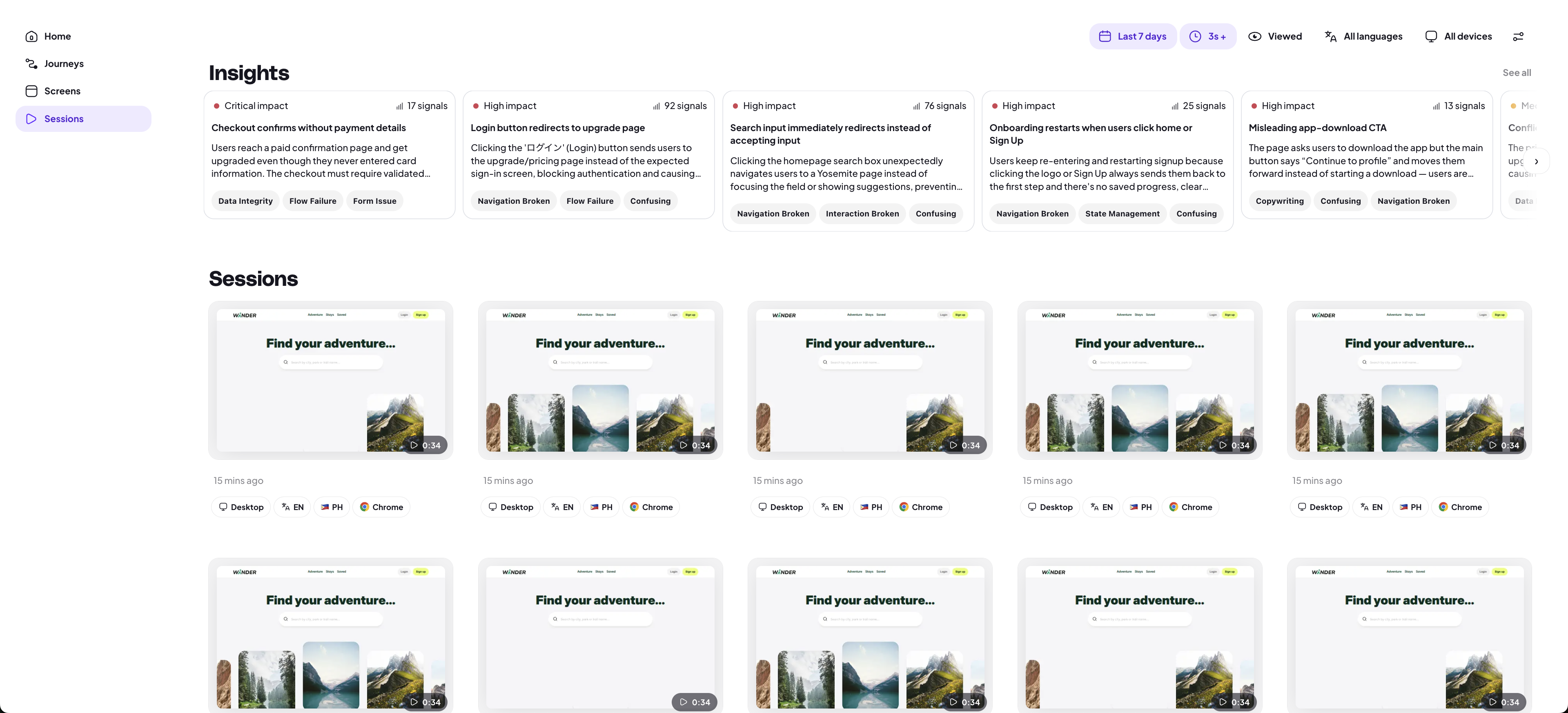
The Sessions page provides a full list of recent sessions.
View a complete list of recorded sessions, sorted by most recent first
Open Insights Playlists to see curated sets of sessions around key product improvements
Apply filters to narrow down to any particular kinds of sessions that you want to watch
Select any session to open its dedicated session view
Learn more: What are insights
From a screen
You can also view sessions directly from any screen in your product.
Open the screen you want to analyze.
Select the Sessions tab on the right-hand side.
Browse all sessions where users visited that specific screen.
Click a session to open it in detail.
Note: Viewing a session from a screen will open the playlist view.
What you can see inside a session
Select a session from the Sessions page to open and view it.
Session details
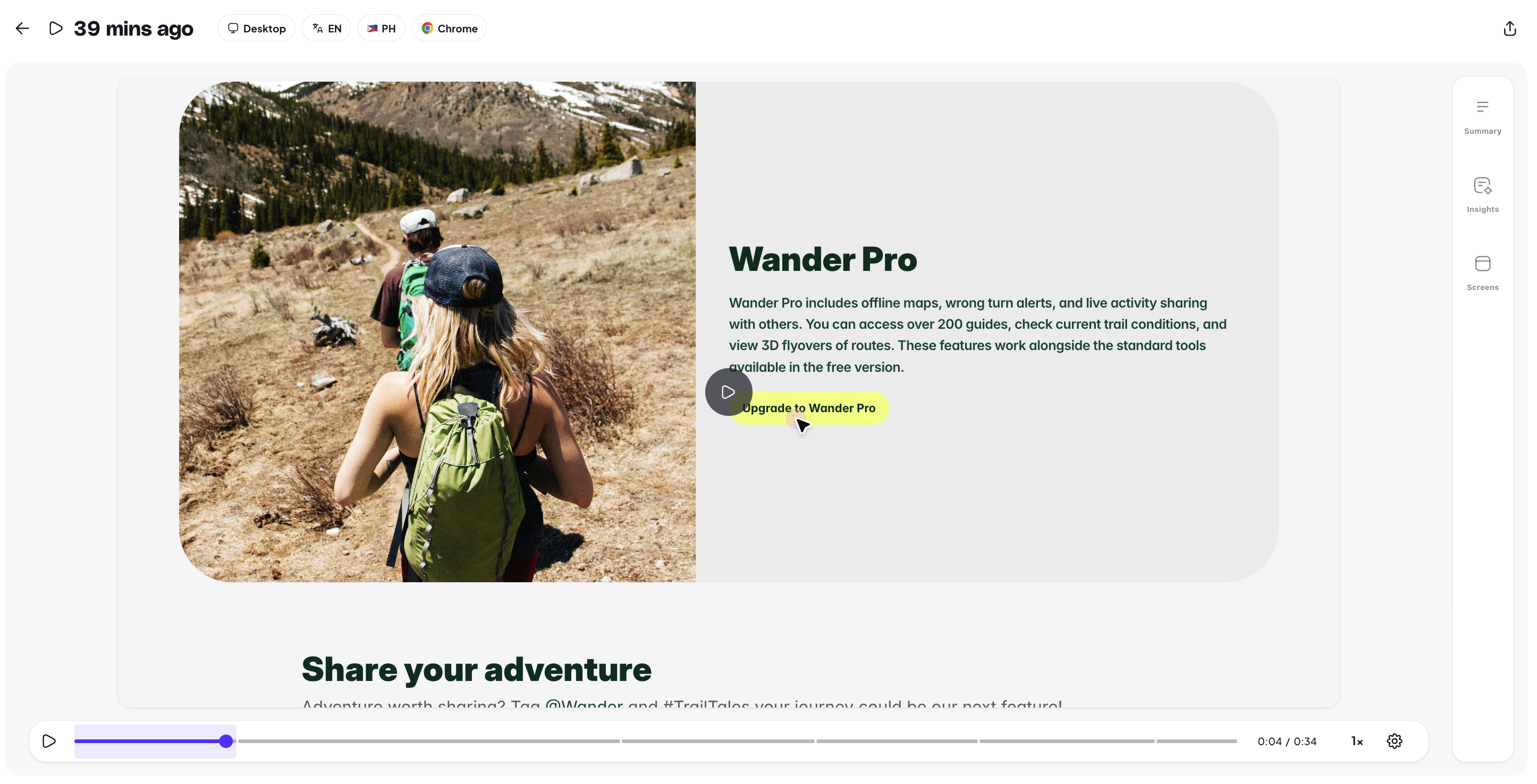
When clicking a session, you will get a wide screen view of the user recording and some details on the top and ride hand side panel. On the top, you will see details such as:
Recency of the session (i.e. how long ago that session happened)
Property pills which contain Adora's default properties and any custom properties you add
Side panel
In the session view, the right hand side panel has a Summary, Insights, and Screens tab.
Summary
Generates a summary of the user activity during that session.
Insights
Splits into signals and insights, where Adora will analyse the session and surface you any opportunities for improvement to your product.
Learn More: Understanding signals and insights
Screens
Shows you a list of all the screens the user visited during that session.
Playback recording
Watch a full recording of how the user interacted with your product and where they went. You will also see the session timeline that will show each screen the user visited in order during their session. When watching a recording you can:
Hit Spacebar to stop and start the recording
Use the left and right arrow keys to skip ahead to the next screen in the session
Hover your mouse over the timeline to see a thumbnail of the screen
Change the playback speed
Enable/disable Skip Inactivity and Autoplay
Session playlists
When you click to watch a session from a screen, or one of the insights playlists on the session page, you will watch that session in the playlist view.
Session details
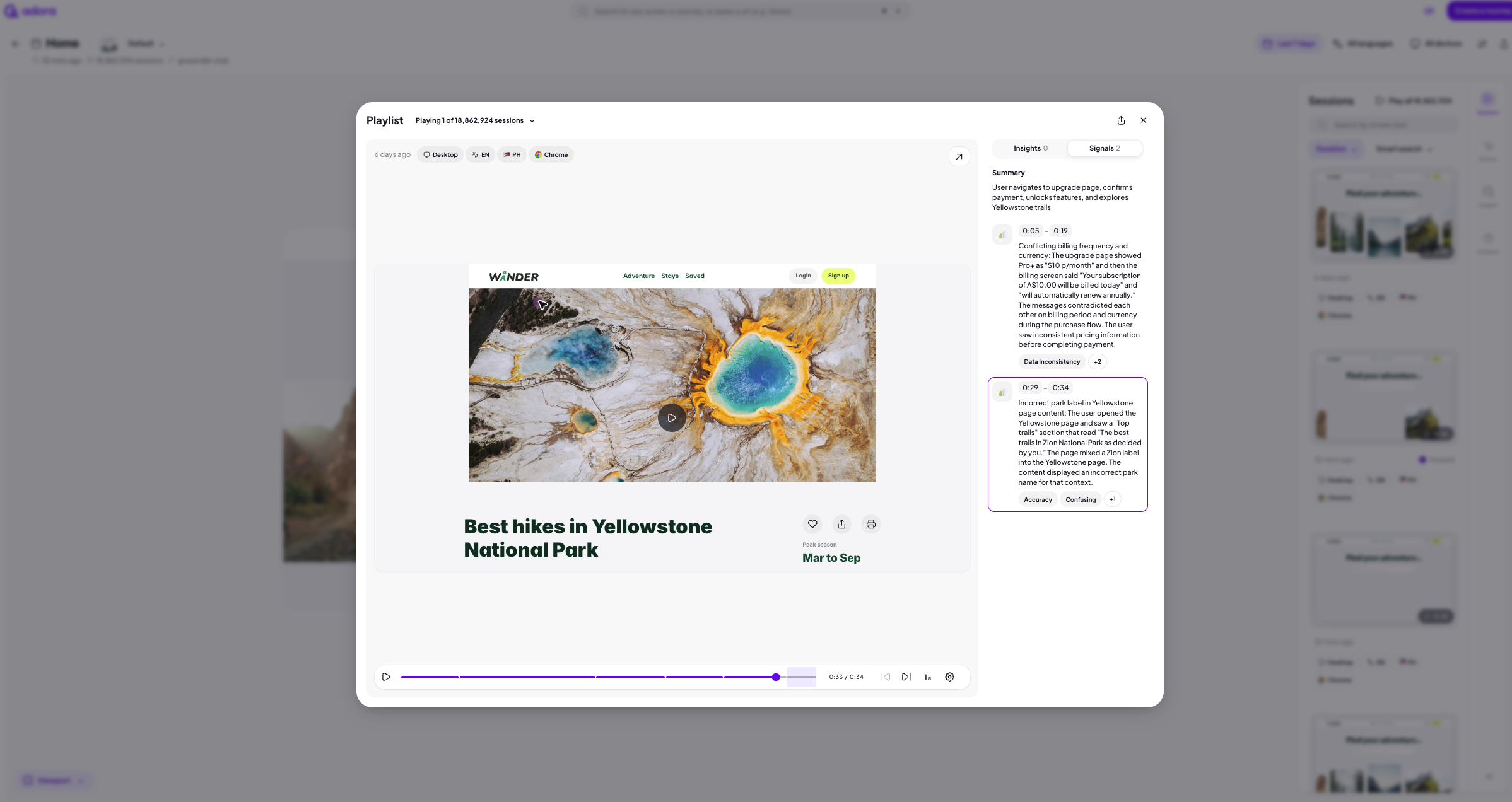
Similar to the session view, you'll be able to see all the same key bits of information about this session.
At the top, you will be able to open the playlist by clicking the Playing 1 of.. button and see all the different session within this screen.
Signals and Insights
On the right, you will be able to see the signals and insights for the session. Clicking on the signal will take you to that moment in the session recoding.
Note: When clicking on an insight from the session pages, you'll notice that only the signals tab appears, as the insight itself relates to multiples session within.