
Viewing and navigating the screens page
Overview
The Screens page helps you explore every screen Adora has captured from your users’ sessions. You can see which screens are most active, open individual screens for deeper analysis, and understand how customers move through your product. This article explains how to navigate the Screens page and find the screens you need.
How to access the screens page
Click Screens icon on the left-hand navigation.
On first click, your screens will load in the Canvas view.
How screens are displayed
Canvas view
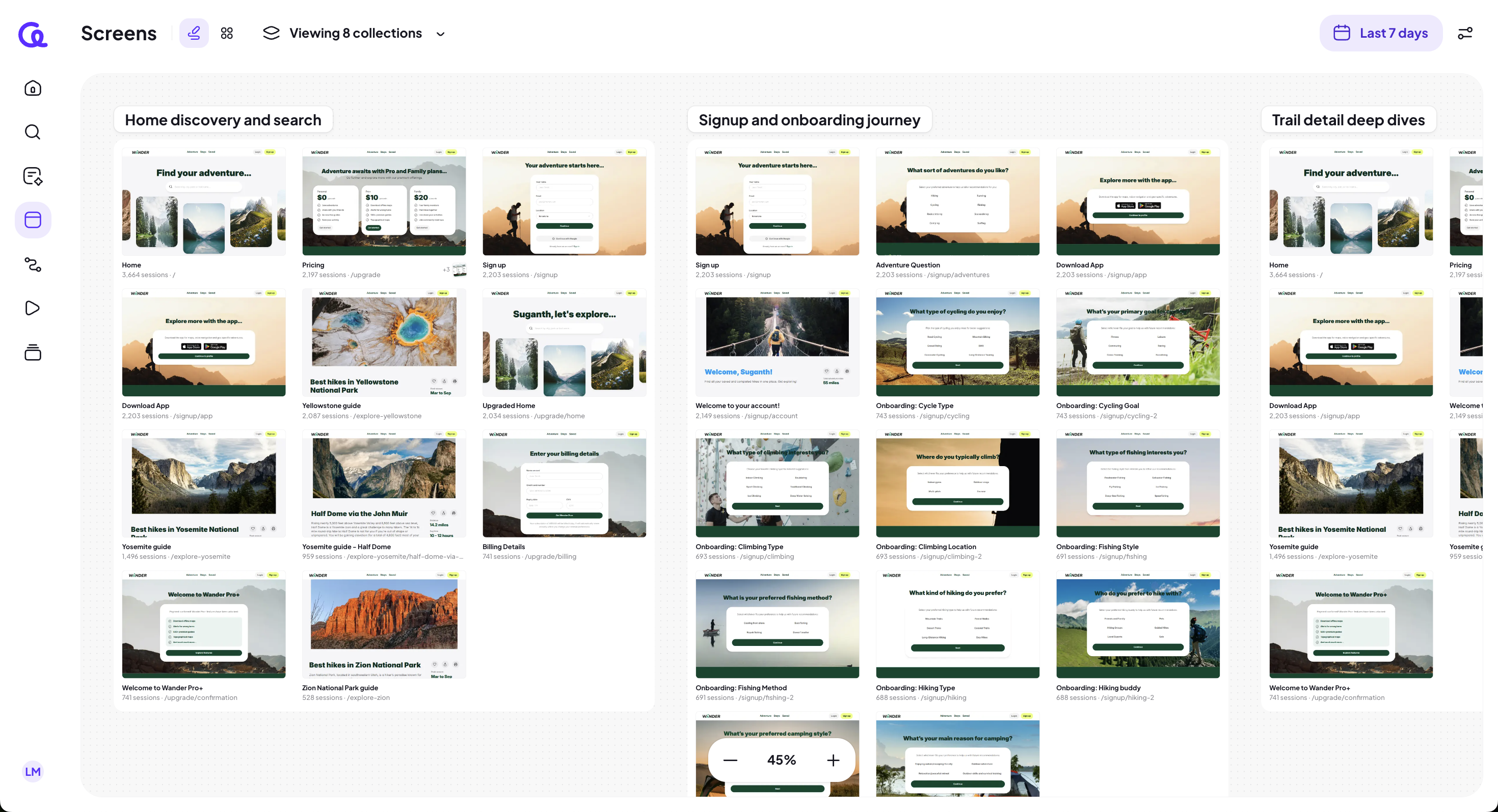
The canvas view shows the screens from different collections across a canvas whiteboard. Within a collection, they are ordered in descending order of session volume.
In the canvas view, you can:
Select which collections you want to show, by clicking the "Viewing Collections" Dropdown. From here, you can also decide if you want to show subscreens.
Click on a collection to get insights
Click on a specific screen to get insights, sessions, and analytics. You can also create a journey from the selected screen.
Learn more: Collections
Grid view
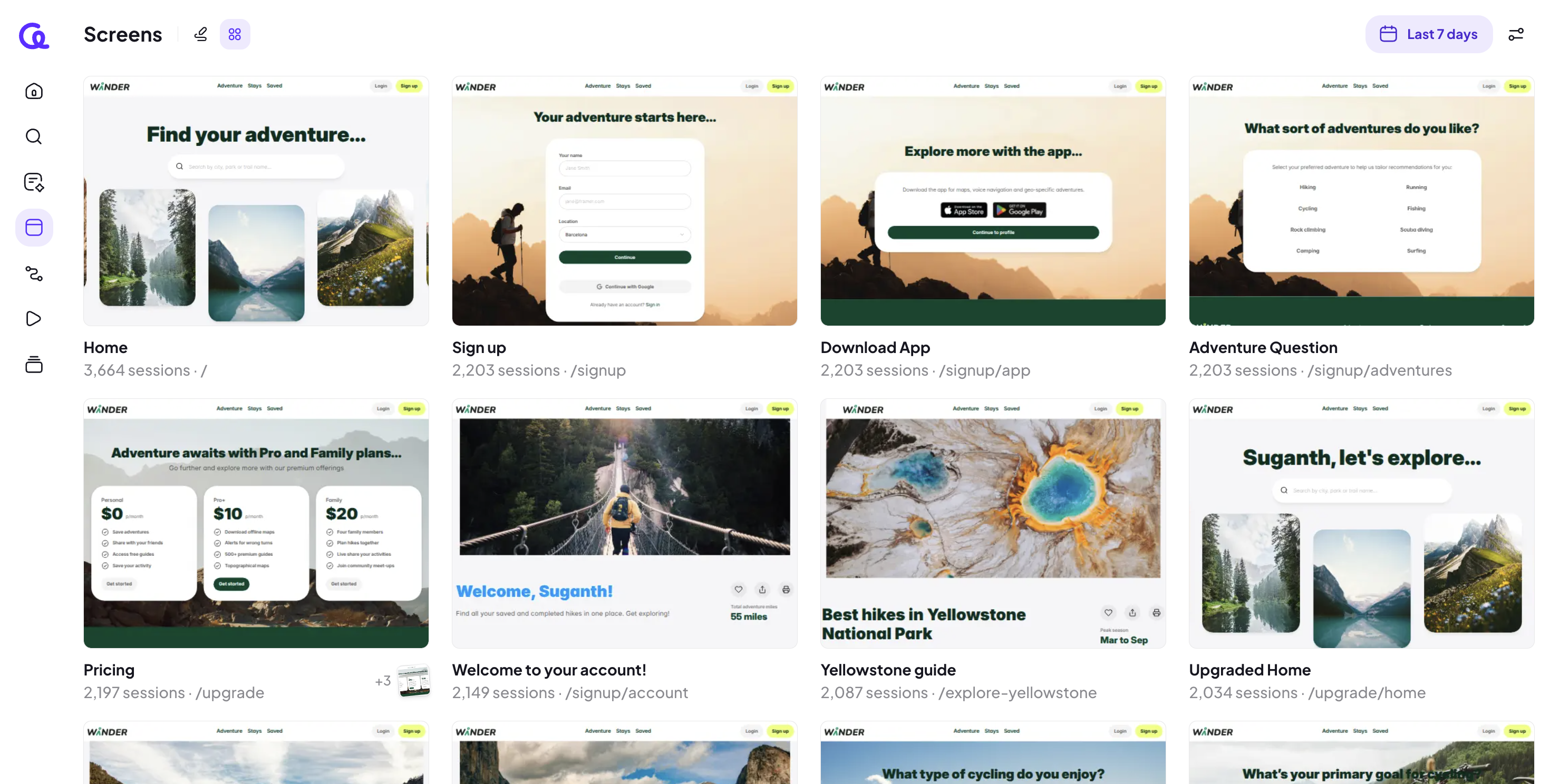
The grid view shows all screens in descending order of session volume. Screens with the highest number of sessions appear at the top. This helps you quickly identify the most-used parts of your product.
Opening a screen
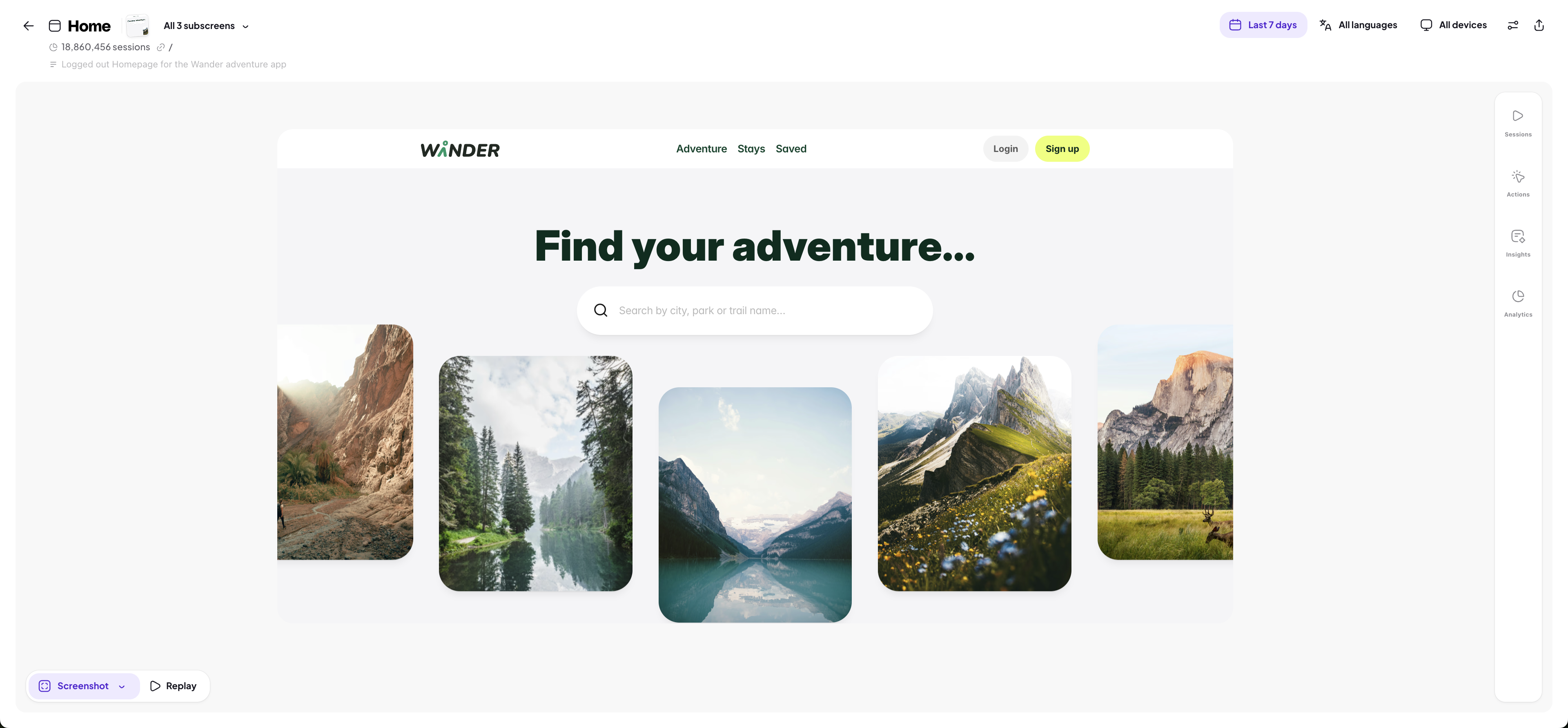
To open a screen:
Click any screen in the list.
The Screen page opens, showing more details such as actions, insights, analytics, and filters.
You can also open screens:
From a Journey, by clicking any screen node
From links shared by teammates
Key features on a screen page
The right-hand side of the Screens page includes the feature panels that help you analyze each screen’s behavior in more depth: Actions, Insights, Analytics, and Filters. These let you understand what users do on a screen, what patterns stand out, and how different user groups behave.