
Working with subscreens
Overview
Subscreens help you understand all variations of a page, even when the URL stays the same. This article explains what sub-screens are, how Adora creates them, and how you can manage them.
What subscreens are
A subscreen is a visually different version of a screen that shares the same URL. Many products update the page content without updating the URL. Adora captures these visual differences and groups them into subscreens.
Examples include:
Multi-step onboarding flows
Forms that load different states
Dynamic content or modal variations
Why subscreens matter
Subscreens help you:
Understand every possible user experience
Identify issues in specific steps
Compare variations of the same page
Improve onboarding or multi-step flows
How subscreens are created
Adora automatically creates sub-screens when:
The screen layout or content changes
The URL remains the same
The visual difference is large enough to represent a unique state
This gives you a complete picture of how users move through dynamic pages.
Viewing subscreens
To view subscreens:
Open any screen.
Open the Subscreens carousel.
Click a Subscreen to open it.
You will see the snapshot, actions, insights, and analytics specific to that subscreen.
Manually creating subscreens
You can also create additional subscreens using Regular Expression matching if you want more granular control.
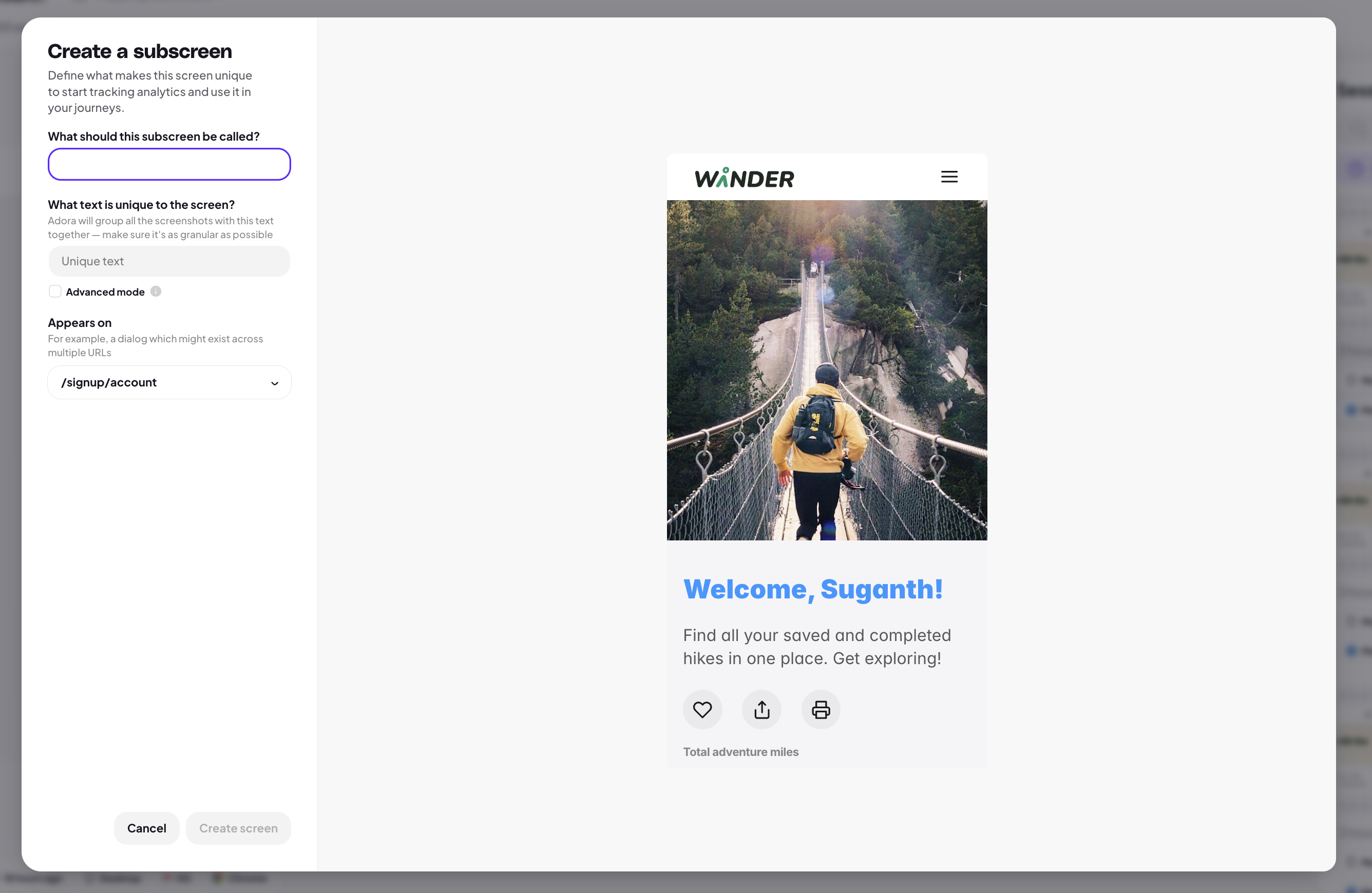
Examples:
Separating A/B test variations
Highlighting a temporary UI state
Grouping experimental flows
How to create subscreens with regular expression matching
To manually create a subscreen:
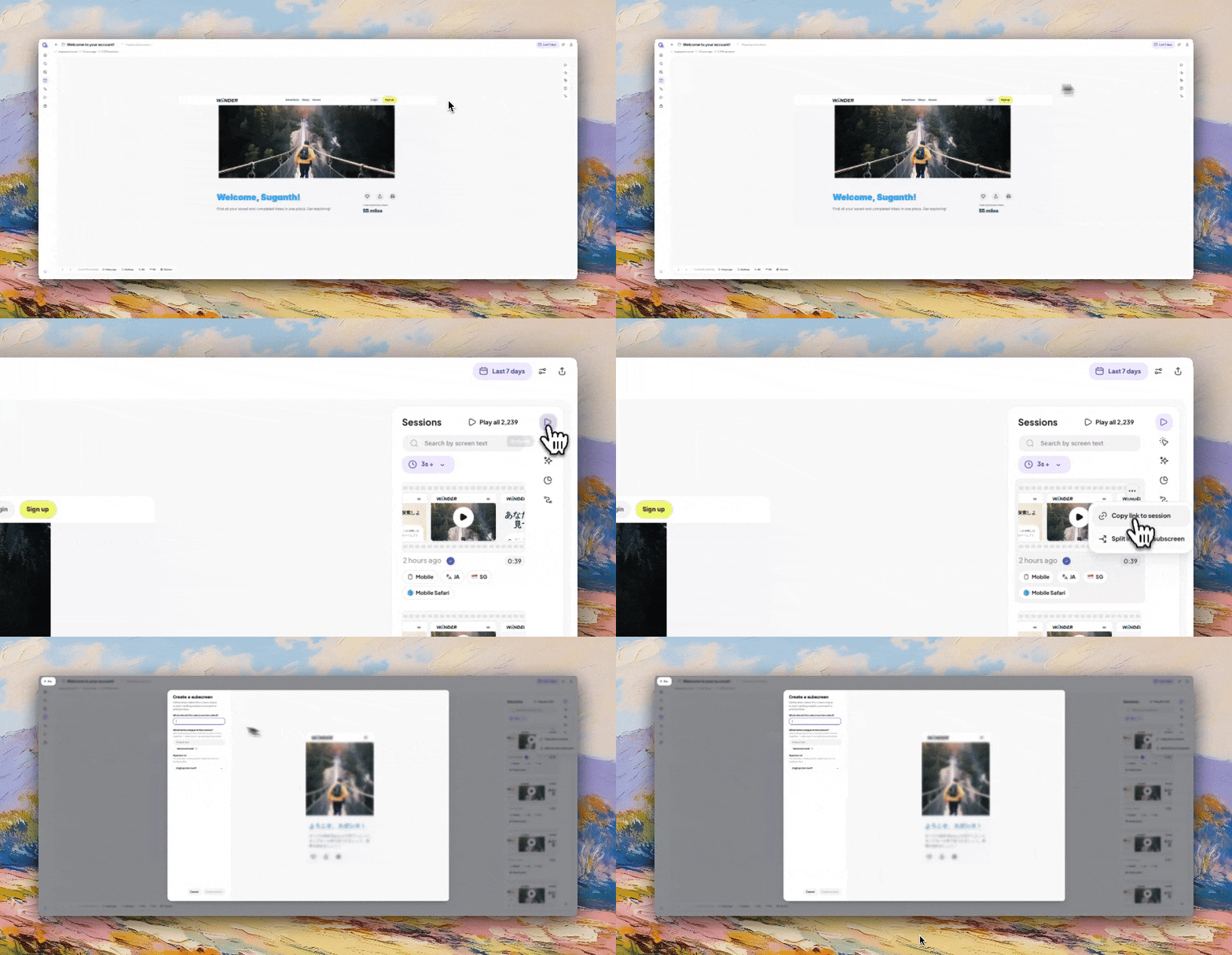
Open the screen that you want subscreens for.
Click the sessions icon on the right hand side.
Hover over the thumbnail of a session and click the "..." that appear in the top right corner.
Click the "Split into new subscreen" button
Enter a name for the new subscreen.
Enter your unique expression. You can also used advanced mode for more specific targeting. More information can be found here.
It's best to use very specific text on the screen to ensure that you are correctly targeting the right subscreen.
For example, let's say you're trying to create an onboarding subscreen called "Personal Details", it would be be better to use the subparagraph text (e.g. "Please fill out your personal details) to match, rather than the heading (as the heading could be used in various other spots in the product).
Confirm that the text is found on the screen by clicking the returned screenshots to view.
Confirm if the subscreen appears on single or multiple URLs
You may have some dialogs that appear in multiple parts of your product (e.g. Upgrade modal) and appear on multiple URLs.
Changing the Appears on setting to Multiple URLs will create a global subcreen, grouping it together and showing every spot that it appears.Click "Create Screen" and Adora will start to go through and create the subscreen. This will happen in the background so you can close the modal once you're done.